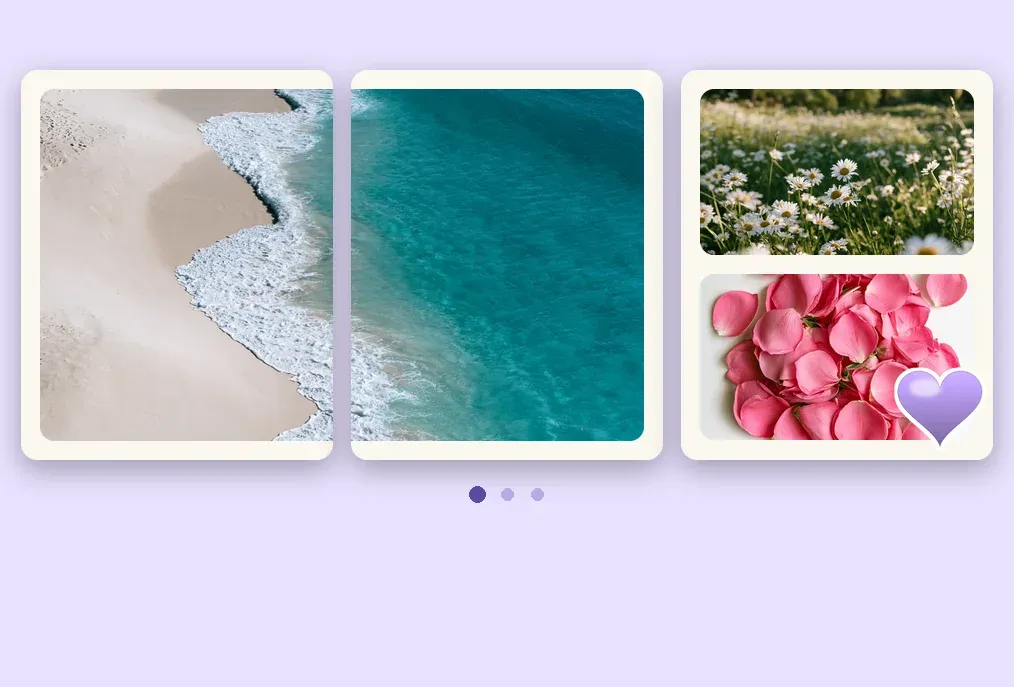
A seamless carousel is one long image cut into equal slides. Each slide is a normal Instagram post on its own, but when someone swipes, the picture carries on from one slide into the next: a beach that keeps going, a photo that sits half on slide 2 and half on slide 3, a title that leads into the first picture.
It works because Instagram shows carousel slides edge to edge with no gap. Cut the long image at exactly the right points and nobody can see where one slide ends.
Pick the size first
Every slide in a carousel has the same shape, set by the first one. For a feed post that fills the most screen, use portrait 4:5, which is 1080 x 1350 pixels per slide. Square (1080 x 1080) works too, but takes up less of the feed.
The full canvas is the slide width times the number of slides:
| Slides | Portrait 4:5 canvas | Square canvas |
|---|---|---|
| 2 | 2160 x 1350 | 2160 x 1080 |
| 3 | 3240 x 1350 | 3240 x 1080 |
| 4 | 4320 x 1350 | 4320 x 1080 |
| 5 | 5400 x 1350 | 5400 x 1080 |
There is a full table up to 20 slides in our Instagram carousel size guide. If you build the carousel in an app that works in slides, it does this math for you.
Make it in Collagio
- Open Carousel from the home screen and pick the photos you want. You can pick several at once.
- Set the shape and the number of slides. 4:5 is the one to use for the feed. You can add, duplicate, move and delete slides later from the Slides panel, up to 20.
- Lay the photos across the slides. The editor shows all the slides as one long canvas. Drag or stretch a photo so it crosses the line between two slides, and that photo will carry across when people swipe.
- Dress it up if you like: a background color or pattern, frames, stickers, text. Anything you place across a slide line carries across too.
- Tap Save to phone. Each slide is saved as its own full-quality JPEG in Pictures > Collagio, in order.

Post the slides in the right order
In Instagram, tap the plus button, choose Post, and turn on multiple selection. Tap the slides in order: slide 1 first, then 2, then 3. Instagram numbers them as you tap.
Before you tap Next, look at the shape. Instagram gives every slide the shape of the first one. If the preview has gone square, use the crop button to switch it back to portrait, or your cuts will no longer line up.
If you saved several versions of the same carousel, the newest slides are at the top of your gallery. Collagio saves them in order, so they sit together.
Tips that keep the seams invisible
- Keep faces and words off the cut lines. A face split across two slides is the one thing that breaks the effect. Move the photo a little so the line falls on sky, sand or background.
- Give slide 1 a reason to swipe. Let something poke in from the right edge: half a photo, a sticker, the start of a line of text. People swipe to see the rest.
- Mind the profile grid. Your profile shows posts as 3:4 thumbnails, so a 4:5 first slide loses a thin strip from each side there. Keep the important part of slide 1 away from its left and right edges.
- Don't go too long. Three to six slides is plenty for most seamless posts. Save the 20-slide length for photo dumps.
Questions people ask
How many slides can a seamless carousel have?
Instagram takes up to 20 photos or videos in one carousel. A seamless one usually works best at 3 to 6 slides, because people stop swiping long before 20.
Why does my seamless carousel show a gap or a jump between slides?
Either the slides were not cut at exactly the same width, or Instagram cropped them to a different shape. Make every slide the same size, 1080 pixels wide, and check the crop before you tap Next.
Can I make a seamless carousel for free?
Yes. Collagio is free to use and saves full-size slides. Free saves carry a small Collagio mark; Collagio Pro removes it.
Does this work on iPhone?
Collagio is an Android app. The sizes in this guide work anywhere, but the steps are for Android.