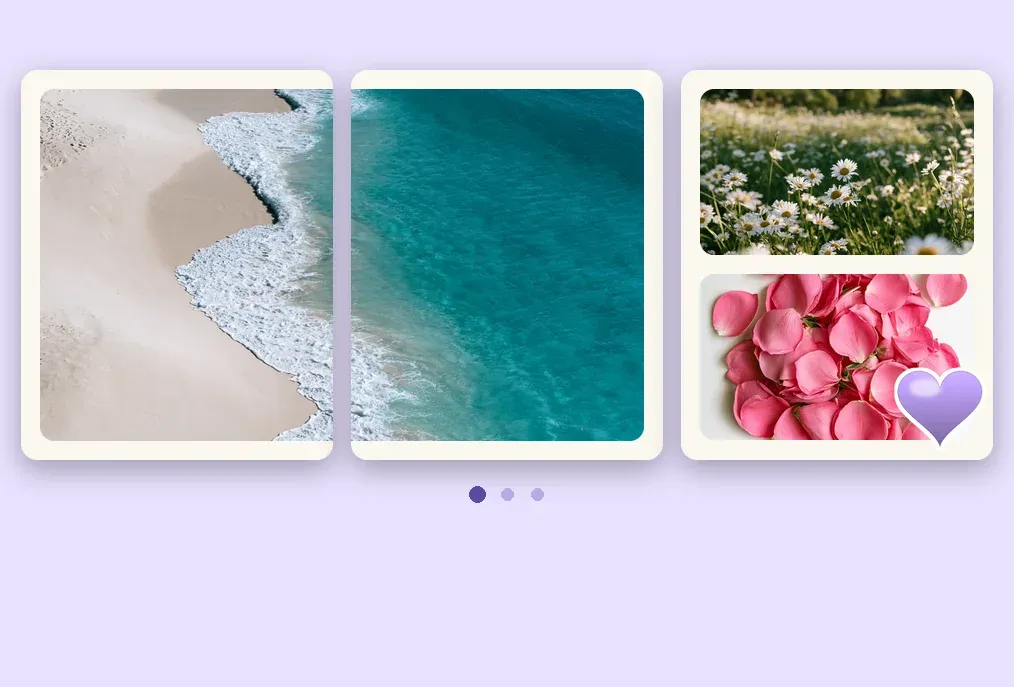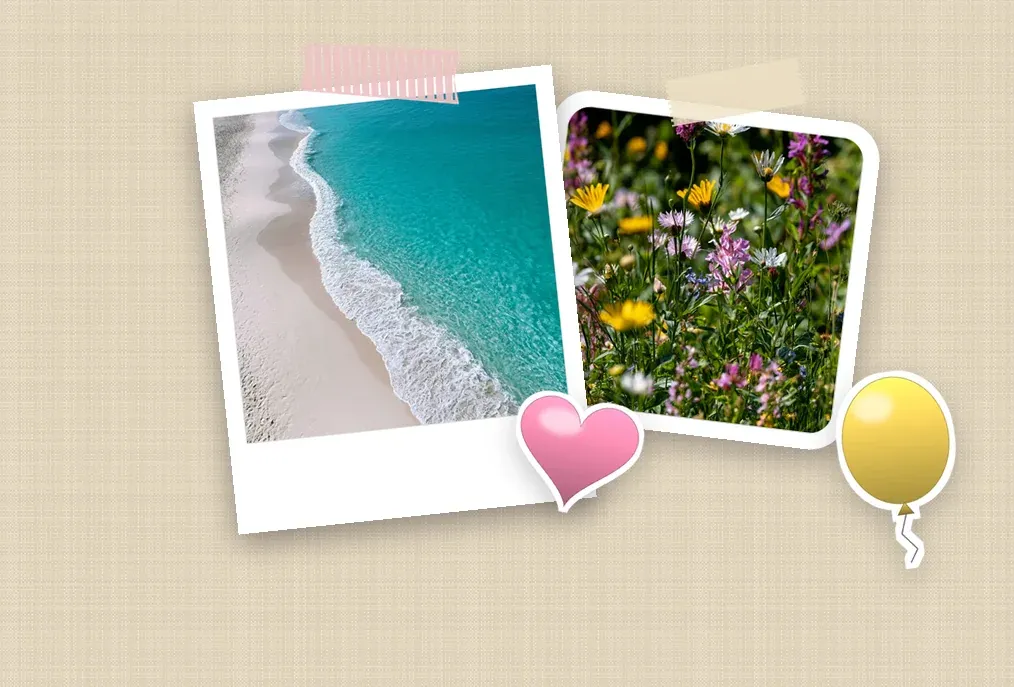

A collage puts several photos in one picture. On Android you have two routes: the basic tool that may already be on your phone, or an app built for layouts.
The quick way: the tool you already have
Google Photos can make a collage: select a few photos, then look for Create and Collage. Samsung's Gallery app has its own collage option on Galaxy phones, under Create after you select photos.
Both are fine for a quick grid of a few pictures. They run out quickly when you want more photos, a shape like a heart, a set size for Instagram, or anything on the collage besides the photos.
The fuller way: a layout app
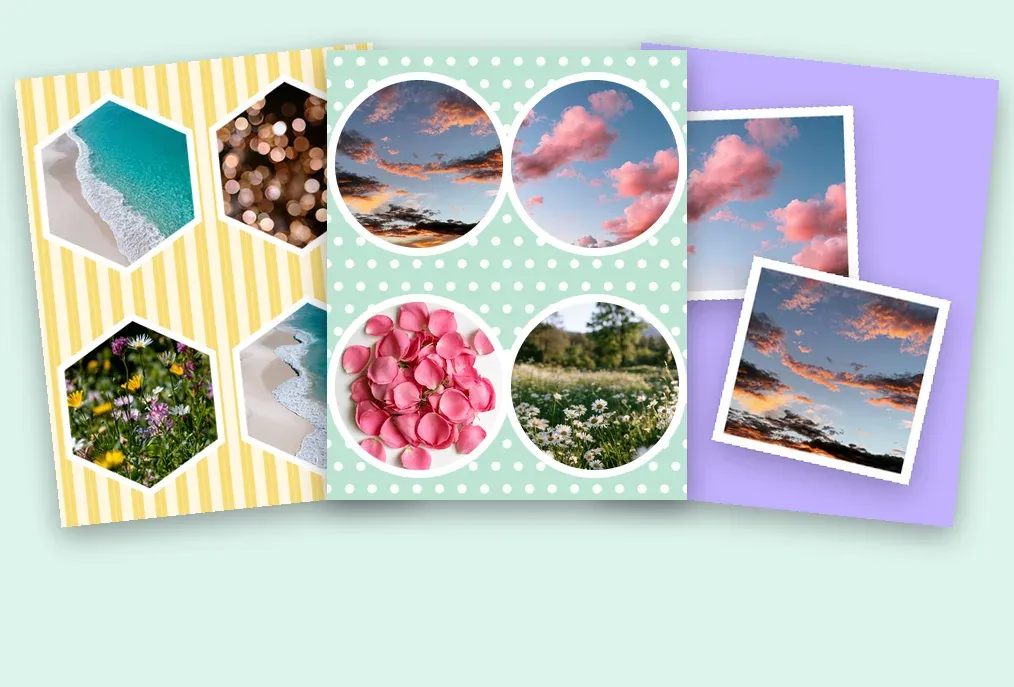
Collagio is a collage and carousel app for Android. It has more than 100 layouts for 1 to 9 photos, in five families:
- Grid: rows, columns and mixed sizes.
- Shapes: a heart, circle, diamond, hexagon or star over a grid of photos.
- Diagonal: photos split along angled lines.
- Curved: soft waves and arches between photos.
- Freestyle: photos placed anywhere, at any angle, like a scrapbook page.
Step by step
- Open Collage on the home screen and pick your photos. You can select several at once.
- Choose a layout. Filter by how many photos it holds, from 1 to 9, and tap one to try it. Your photos drop straight in.
- Pick the format: 4:5 for an Instagram post, 1:1 for square, or 9:16 for a Story.
- Arrange. Drag a photo to move or zoom it inside its cell, swap photos between cells, and drag the borders between cells to resize them.
- Finish it. Set the border width, corner rounding and border color, then add a background, frames, stickers, text or a filter.
- Tap Save to phone. The collage saves as a full-quality JPEG, 1080 pixels wide, in Pictures > Collagio.
Collagio saves your project as you go, so you can close it and pick it up later from My projects.
Tips for a collage that looks put together
- Choose a lead photo. Put your best shot in the biggest cell, or in the shape at the center of a shaped layout.
- Mix close-ups and wide shots. A wide scene next to a detail is more interesting than six wide scenes.
- Stick to a few colors. Photos that share a color look like a set. A filter on every photo helps when they don't.
- Use the border on purpose. A thin white or cream border looks clean. No border reads as one picture. Rounded corners soften a busy grid.
- Leave space for text if you add any, and check it on the full preview before you save.
Questions people ask
Does Android have a built-in collage maker?
Many phones do. Google Photos can make a collage from a few photos, and Samsung's Gallery app has one on Galaxy phones. They are fine for quick grids, with a small set of templates.
How do I make a collage on a Samsung phone?
For a quick one, select photos in the Gallery app and look for Create, then Collage. For more photos, shapes or Instagram sizes, use a collage app such as Collagio.
What size should a collage for Instagram be?
1080 x 1350 pixels (4:5) for the feed, or 1080 x 1920 (9:16) for Stories. Collagio has both, plus square.
Can I make a collage without a watermark?
Built-in tools add no mark. In Collagio, free saves carry a small Collagio mark and Collagio Pro removes it.